
SMRP Member Portal Is Now Live — Welcome to Your New Member Portal!
One login. Everything you need. Here's how to get started.
We’re excited to announce that the SMRP member portal upgrade is complete. Your new and improved membership platform is now live.
All SMRP systems — including Certifications (LearningBuilder), Training Academy, and Digital Library — are connected to your SMRP member portal account via single sign-on (SSO). This means one login gives you access to everything. Simply log in to the SMRP new member portal and navigate to the section you need.
Please read the section below that applies to you.
GENERAL LOGIN - All Users
If you have an existing account with us:
- Visit the Member Portal: https://members.smrp.org/account/login.aspx
A dialog box will appear. Select ‘Click here to reset your password’.
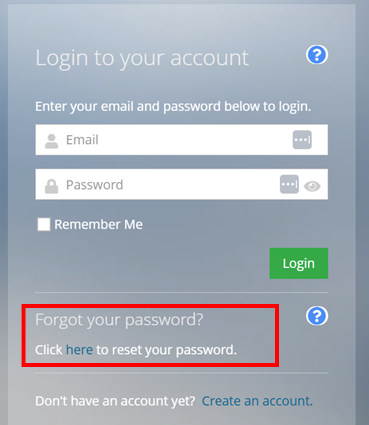
- Enter your email address. This will send a link to create a new password. You will need to Create a new password with a minimum of 16 characters, including at least one uppercase letter, one numeric character, and one non-alphanumeric character.

If you DON'T have an existing account with us:
- Visit the Member Portal: https://members.smrp.org/account/login.aspx
A dialog box will appear. Select ‘Create an account’.
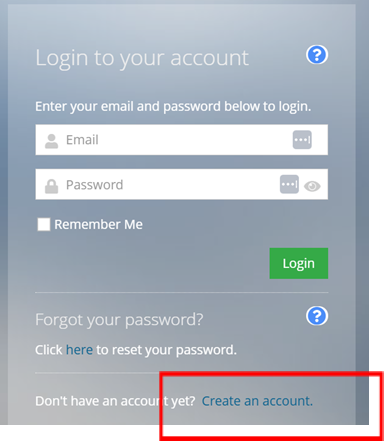
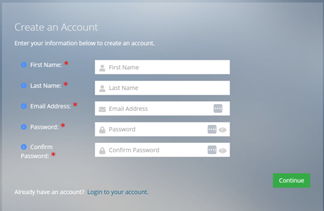
- On the Create an Account page, enter your information. If an account already exists with your email, the system will notify you, please revisit Step 1 for existing users to reset your password.
Create a new password with a minimum of 16 characters, including at least one uppercase letter, one numeric character, and one non-alphanumeric character. Then select “Continue.”
- You are now on your profile page. From this page you can update your information or navigate to other areas to purchase memberships, register for events, or access materials. Please be sure you click on “Account” and update your demographic information – scrolling all the way to the bottom and selecting the committees you wish to be part of.
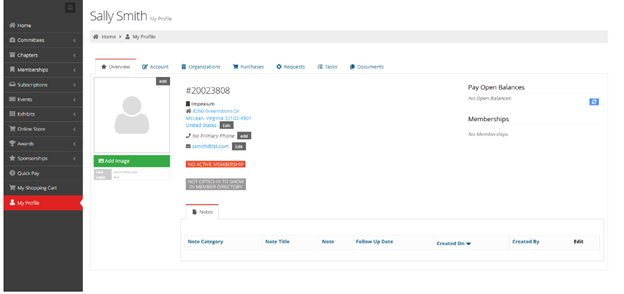
Once your account setup is complete and you are successfully logged in, you will have full access to all SMRP systems through your member dashboard.
Having trouble logging in? Please submit a ticket at the SMRP Support Portal: https://kellen.atlassian.net/servicedesk/customer/portal/250. Your request will be automatically routed to the appropriate SMRP team, helping improve response times and ensuring your inquiry reaches the right staff member.
FOR MEMBERS WHO NEED TO RENEW THEIR MEMBERSHIP
If your membership lapsed or expired during the transition period (May 28 – June 22), you can now renew your membership directly through the SMRP new member portal — but only after you have completed your password reset or account setup in Step 1 above. If you have not completed that step, you will not be able to access the membership renewal page.
- Log in to SMRP new member portal at https://members.smrp.org
- Navigate to the Membership section of your dashboard on the left of your profile.
- Click on Renew Your Membership. You will be taken to your Active Memberships page. Click on the green Renew button next to your current membership.
- Follow the prompts to add your membership to the online cart and complete with payment information.
If you experience any issues with your renewal or your membership status does not appear correct, please submit a ticket at the SMRP Support Portal: https://kellen.atlassian.net/servicedesk/customer/portal/250 and our team will assist you promptly.
FOR CERTIFICATIONS & RECERTIFICATION
Your certification data has been migrated automatically — no new account needed.
You can access Certifications directly through the SMRP new member portal — but only after you have completed your password reset or account setup in Step 1 above. If you have not completed that step, you will not be able to access LearningBuilder or any certification information.
Once logged in:
- Navigate to LearningBuilder or click on Certification and Recertification in the Certifications menu in the member portal
- You will be automatically signed in via SSO, no separate login required
- Your full certification history, application status, exam authorizations, and recertification information will be available immediately
In LearningBuilder you can:
- View your full certification application history and status
- Access your exam authorizations and recertification information
- Schedule your CMRP or CMRT exam through Pearson VUE
A note on Pearson VUE: Exam scheduling is now available again. We recommend scheduling through LearningBuilder to ensure your records stay up to date. You may also access Pearson VUE directly at https://www.pearsonvue.com/us/en/test-takers/log-in.html; however, going through LearningBuilder is preferred.
Existing exam authorizations and application statuses have been transferred automatically — no action required on your part.
Click here for detailed step-by-step instructions for submitting your application and scheduling your exam.
TRAINING ACADEMY
No new account needed. Your existing Training Academy account has been migrated and all previously purchased courses and in-progress content are available from day one.
You can access the Training Academy directly through the SMRP new member portal — but only after you have completed your password reset or account setup in Step 1 above. If you have not completed that step, you will not be able to access the Training Academy or any of your course content.
Once logged in:
- Navigate to the Training Academy
- Click the Log In link on the Training Academy dashboard — you will be automatically signed in via SSO using your SMRP member portal credentials, no separate login required
- All your previously purchased courses and in-progress content will be available immediately
For detailed step-by-step login instructions, visit the Training Academy Getting Started page at Society for Maintenance & Reliability Professions: Getting Started.
FOR DIGITAL LIBRARY / SMRP STORE
If you need access to files that were available in your old Digital Library, please submit a ticket at the SMRP Support Portal: https://kellen.atlassian.net/servicedesk/customer/portal/250.
To access documents associated with new purchases going forward:
- Log in to SMRP new member portal at https://members.smrp.org
- Navigate to the Merchandise tab in the Purchases section of your dashboard : https://members.smrp.org/account/profile.aspx?tab=Merchandise
Click the details button next to an item to view the order details, which will include the download link.
NEED HELP?
If you experience any issues logging in or navigating the new portal, please submit a ticket at the SMRP Support Portal: https://kellen.atlassian.net/servicedesk/customer/portal/250. Your request will be automatically routed to the appropriate SMRP team, helping improve response times and ensuring your inquiry reaches the right staff member.